How to Check cPanel...
How to Check cPanel Webmail Login Log for Security
How to Check cPanel Webmail Login Log for Security
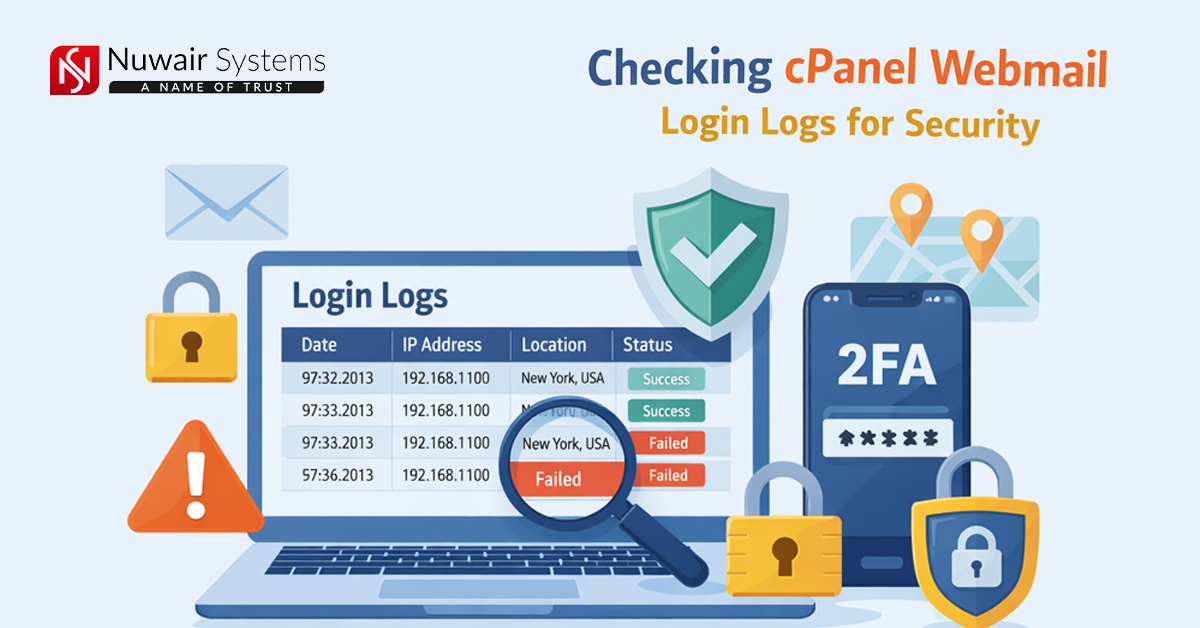
If you want to keep your webmail secure, the most important thing is to check your login logs. Login logs are records that show when and from which IP address your account was logged in. This will let you know if an unauthorized person has accessed your account.
For example, if your login logs show an unknown IP or logins at unusual times, this could be a sign of a problem. In such a case, change your password immediately and use a strong password.
For added security, enable Two-Factor Authentication (2FA). This is an extra layer that makes it difficult for any unauthorized person to log in.
It is a good habit to check your login logs every few weeks or months, so that your webmail is always secure and your important emails are safe.
1. Log in to cPanel
First, open cPanel in your web hosting account. cPanel is your control panel where you can manage your website and emails. To open it, type in your browser: yourdomain.com/cPanel and log in with your username and password.
2. Go to the Metrics section
Find the Metrics or Security area once you have successfully logged into cPanel. The choices to view login logs for webmail and other accounts can be found in this section. By doing so, you will be able to ensure that your webmail is protected, as well as track when and from which IP address the login was made.
3. Search for Email Trace or Track Login
In cPanel, find the Email Trace or Track Login option and click on it. Here you can see all your webmail login records, such as when, where, and from which IP the login was made, to detect the activity of an unauthorized person.
4. View Login Logs
Each login’s IP address, date, time, and state will be shown in the Login Logs. Thereby, you’ll be able to see when and where someone logged into your email account. Immediately change your password if you see an unknown IP address or a login that looks fishy. Doing this is very important to protect your account. Strong passwords are better for protection.
5. Change Password (if needed)
If you look at your login history and see any strange or suspicious behavior, you should change your password right away. To do this, go to cPanel and click on Change Password next to your account in the Email Accounts list. Create a new password that is hard to guess by using capital letters, numbers, and symbols. It is very important to do this step to prevent email theft.
6. Extra Security (Optional)
Use Extra Security to keep your webmail secure. First, enable Two-Factor Authentication (2FA). This means that your password alone won’t be enough to log in, but you’ll also have to enter an additional code. This makes it harder for anyone to get into your account.
Also, remove access to any unnecessary devices or apps connected to your account. These small steps can help protect your webmail from being hacked and make it more secure.