How to Find Your Hos...
How to Find Your Hostname for Incoming Mail Server Settings
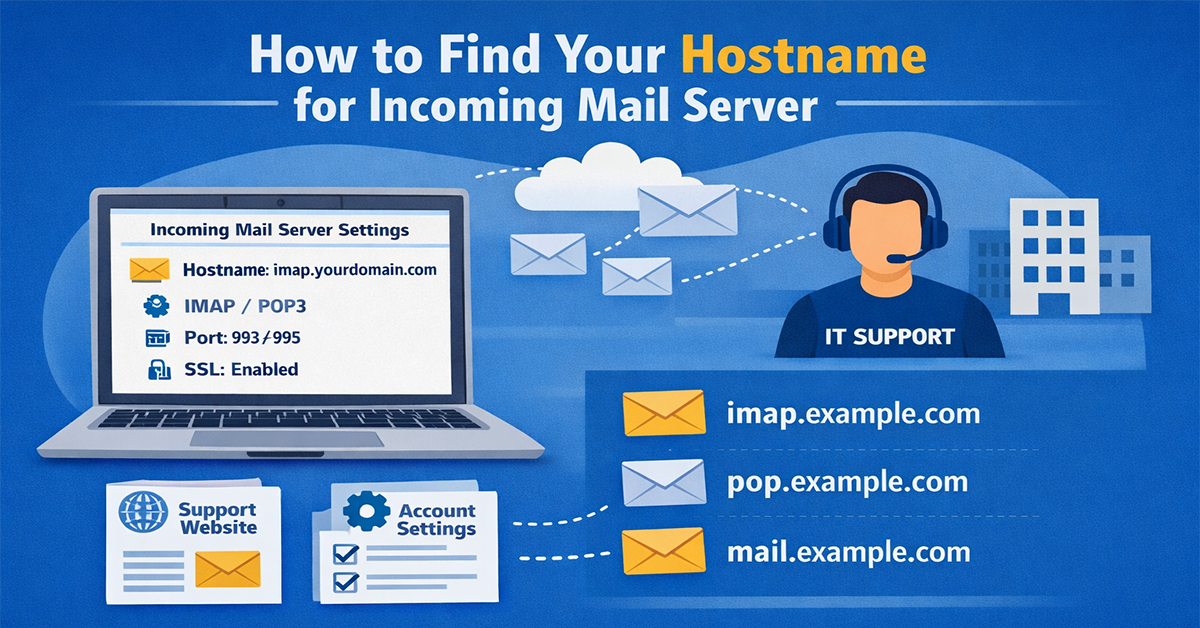
How to Find Your Hostname for Incoming Mail Server Settings
The Incoming Mail Server address, which is often referred to as the Hostname, is something that you need to be aware of in order to utilize your email account in your email client, such as Outlook, Thunderbird, or a mobile email app. It is possible to download your emails by using this hostname, which is a unique address that connects your email client to your email server. To put it another way, it is the “gateway” via which your emails are sent to your computer or mobile device when they are received.
Each email provider (such as Gmail, Yahoo, or your work email) has its own unique hostname. For example, for Gmail, this is imap.gmail.com. If you don’t enter this address correctly, your email client won’t be able to receive your emails.
To find the Hostname, you can check your email provider’s support website, your client’s account settings, or contact your IT department.
1. Check the email provider’s website
If you want to find the hostname of the incoming mail server for your email account, the easiest way is to go to your email provider’s website. An email provider is the company that handles your email, such as Gmail, Yahoo, or your work or school’s email system.
Most providers provide this information on their support or help websites. There, you’ll be shown what hostname to use for the incoming mail server, what port number, and what SSL or other security settings are in place.
For example:
Hostname for Gmail: imap.gmail.com
Hostname for Yahoo: imap.mail.yahoo.com
By doing so, you will be able to effortlessly configure your email client in the correct manner and download your emails without encountering any difficulties.
2. Check the Account Settings of the email client
If you have already set up your email account in an email client, you can also find out the Hostname of the Incoming Mail Server from there. An email client is the app or program in which you read your emails, such as Outlook, Thunderbird, or a mobile email app.
First, go to your email client and open the Account Settings or Server Settings option. Here you will see the details of your email account.
The Hostname written in front of the Incoming Server name is the address that is used to download your emails. For example, if you are using Gmail, you may see imap.gmail.com or pop.gmail.com there.
In this way, you can easily find out your Hostname and set up email in a new device or client, without any support.
3. Contact the ISP or the company
If your email account is at work, school, or university, the hostname of the incoming mail server is often not available on the public web. In such a case, you need to contact your IT team or ISP (Internet Service Provider).
The ISP or company’s IT team can tell you the correct hostname, port number, and security settings so that you can set up the account correctly in your email client. This method is especially important if the company or organization sets up its email server in a specific way.
After contacting you, you often get the following information:
Incoming Server Address (Hostname)
Server Type: IMAP or POP3
Port Number and SSL/TLS settings
This way, you can configure your email client correctly without any problems and download your emails easily.
4. Remember common hostname formats
Most email providers have hostnames in a simple format. There are usually three types:
imap.yourdomain.com (for IMAP)
pop.yourdomain.com (for POP3)
mail.yourdomain.com (for a regular mail server)
Tip:
IMAP is always better because it stores your emails on the server, while POP3 downloads emails and removes them from the device.